We use Red Hat brand UI icons (rh-ui-*) in PatternFly, which are delivered via the @patternfly/react-icons package and the icon component. The all icons table at the end of this page lists the icons commonly used in PatternFly, including their usage details.
The iconography documentation of the Red Hat Design System (RHDS) outlines the full Red Hat icon catalog, including:
- UI icons (the same set we use, plus more variants)
- A large set of standard icons (more general, illustrative, and typically less appropriate for product UIs)
- Microns (smaller, compact icons)
- Social icons
In general, rely on the all-icons table on this page and supplement your needs with the RHDS catalog if needed. If there's no icon for your use case, submit a new icon request to the Brand team.
Migrating to Red Hat icons
To migrate from our previous Font Awesome and PatternFly icon sets without having to manually update every import, apply the pf-v6-icon-set-rh-ui class on an outer element (typically the <html> element). PatternFly uses the mapping in pfToRhIcons.mjs to decide which legacy icons render as Red Hat UI icons. Not every legacy icon is mapped, so some might still require direct updates. This class also only points to the UI Red Hat icon set, not microns or standard icons, which you might prefer for some scenarios.
While you can still use the previous Font Awesome (fa, fas, far, and similar) or PatternFly (pf) icons if your product already relies on them, they are not the recommended path for new work.
Inline icons
Rather than pixels, icons are sized in rems, which are relative to your page’s root font size. For example, if the root size is 10px, a rem size of 1.5 is 15px. PatternFly’s default root is 16px. If you change the root, the following tables’ size values will only be accurate in rems.
Inline icons must be center-aligned horizontally when placed next to text and center-aligned vertically when stacked.
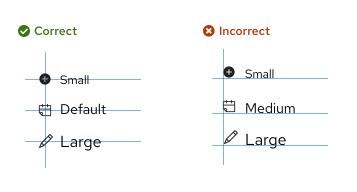
Use the following semantic tokens to ensure that icons are properly aligned and match the correct font size:
Headings
Size | Token | Example |
|---|---|---|
1.375rem (22px) | --pf-t--global--icon--size--font--heading--h1 | Heading |
1.25rem (20px) | --pf-t--global--icon--size--font--heading--h2 | Heading |
1.125rem (18px) | --pf-t--global--icon--size--font--heading--h3 | Heading |
1rem (16px) | --pf-t--global--icon--size--font--heading--h4 | Heading |
1rem (16px) | --pf-t--global--icon--size--font--heading--h5 | Heading |
1rem (16px) | --pf-t--global--icon--size--font--heading--h6 | Heading |
Body text
Size | Token | Example |
|---|---|---|
0.75rem (12px) | --pf-t--global--icon--size--font--body--sm | Small body |
0.875rem (14px) | --pf-t--global--icon--size--font--body--default | Default body |
1rem (16px) | --pf-t--global--icon--size--font--body--lg | Large body |
Standalone icons
Occasionally, you may need to use a standalone icon that isn't aligned with any kind of text. We support a range of icon sizes for these use cases, including small, medium, large, x-large, 2xl, and 3xl icons. These sizes correspond to the following font sizes and tokens:
Size | Token | Example |
|---|---|---|
Small (0.75rem, 12px) | --pf-t--global--icon--size--sm | |
Medium (0.875rem, 14px) | --pf-t--global--icon--size--md | |
Large (1rem, 16px) | --pf-t--global--icon--size--lg | |
X-large (1.375rem, 22px) | --pf-t--global--icon--size--xl | |
2xl (3.5rem, 56px) | --pf-t--global--icon--size--2xl | |
3xl (6rem, 96px) | --pf-t--global--icon--size--3xl |
Most standalone icons in PatternFly components are medium, since that is typically the most versatile size for a UI—other sizes are used sparingly.
Icon colors
All icon colors that you use should align with the proper semantic design token. For example, a warning icon should use our approved warning color token, a danger icon should use our approved danger color token, and so on.
Icon state | Color token | Example |
|---|---|---|
Danger | --pf-t--global--icon--color--status--danger--default | |
Warning | --pf-t--global--icon--color--status--warning--default | |
Success | --pf-t--global--icon--color--status--success--default | |
Info | --pf-t--global--icon--color--status--info--default | |
Custom | --pf-t--global--icon--color--status--custom--default |
To learn more about icon colors and color tokens, visit our colors page.
Using icons in development
Developers should first refer to our development onboarding guide to install, import, and use icons within your product. For React and HTML examples, refer to the icon component.
React imports
Once installed, you can import individual icons from the react-icons package. For example
import RhUiStarIcon from '@patternfly/react-icons/dist/esm/icons/rh-ui-star-icon';
All icons
The table lists Red Hat UI icons with usage guidance for PatternFly. For the full catalog of Red Hat icons (UI, standard, microns, and social), refer to the RDHS iconography guidelines.
For guidance on icon tooltips, refer to our tooltips writing guide.
Click an icon to download it as an SVG, or click the React name to copy the icon's name for use in React.
| Icon | React name | ||
|---|---|---|---|
| rh-ui-add | Indicates the ability to add an item; not for creating completely new objects (see pficon-circle-add) | ||
| rh-ui-add-circle | Indicates the ability to create an item. Use this if there are many instances of this icon in a UI (data list, table, etc) to reduce visual noise. | ||
| rh-ui-ai-create-icon | Create something new with the help of AI. Suggested label: “Create with AI.” | ||
| rh-ui-ai-edit-icon | Use to edit something with the help of AI. Typically used for editing text. Suggested label: “Edit with AI.” | ||
| rh-ui-ai-enhance-icon | Use AI to enhance something. Suggested label: “Enhance with AI.” | ||
| rh-ui-ai-error-icon | Use when a problem has been identified by AI. Suggested label: “Error found by AI.” | ||
| rh-ui-ai-experience-fill-icon | Use for general AI identification or when no other AI icon is appropriate. Must be paired with a button label or tooltip that includes “with AI” or “by AI.” See the AI design language guide. | ||
| rh-ui-ai-experience-icon | Use for general AI identification or when no other AI icon is appropriate. Must be paired with a button label or tooltip that includes “with AI” or “by AI.” See the AI design language guide. | ||
| rh-ui-ai-filter-icon | Use to filter data with the help of AI. Suggested label: “Filter with AI.” | ||
| rh-ui-ai-info-icon | Use when provided information is partially or completely generated by AI. Suggested label: “Information by AI.” | ||
| rh-ui-ai-search-icon | Use to search for something with the help of AI. Suggested label: “Search with AI.” | ||
| rh-ui-ai-troubleshoot-icon | Use to receive help from AI when troubleshooting issues. Suggested label: “Troubleshoot with AI.” | ||
| rh-ui-arrow-circle-down | Represents status: an item (such as a VM) is down | ||
| rh-ui-arrow-circle-up | Represents status: an item (such as a VM) is up | ||
| rh-ui-arrow-right | Indicates the ability to take an action or navigate to another page. Is paired with text | ||
| rh-ui-arrow-up-down | Indicates the availability of a sorting function in a table header | ||
| rh-ui-asleep | Represents an item is asleep or in power suspended mode | ||
| rh-ui-attention-bell-fill | Represents status: attention | ||
| rh-ui-automation | Represents a process-automation object | ||
| rh-ui-ban | Represents status: an item is disabled, canceled, terminated or is not ready | ||
| rh-ui-blueprint | Represents a blueprint | ||
| rh-ui-branch | Represents code branch | ||
| rh-ui-bug | Represents status: there is a bug present | ||
| rh-ui-build | Represents status: in preparation for maintenance | ||
| rh-ui-calendar | Indicates a date picker function is available | ||
| rh-ui-caret-down | Indicates expandable components such as accordions, progressive disclosures, or expandable lists are currently expanded. Clicking this will collapse the component. | ||
| rh-ui-caret-left | Indicates the ability to navigate to the previous page of a multi-page data set | ||
| rh-ui-caret-right | Indicates expandable elements such as accordions, progressive disclosures, or expandable lists are currently collapsed. Clicking this will expand the element. Also indicates the ability to navigate to the next page in a multipage data set. | ||
| rh-ui-caret-up | Indicates expandable table rows (on mobile) are currently expanded. Clicking this will collapse the component. | ||
| rh-ui-catalog-alt | Indicates the availability of a catalog or library | ||
| rh-ui-check | Represents status: Indicates a switch toggle is in the enabled position | ||
| rh-ui-check-circle-fill | Indicates the ability to commit edited changes Represents status: OK in content views such as a tables | ||
| rh-ui-check-clipboard | Represents orders or tasks | ||
| rh-ui-circuit | Represents the CPU of a device | ||
| rh-ui-clock | Represents a time interval | ||
| rh-ui-close | Indicates the ability to close a modal or other panel. Also indicates the ability to clear existing data, such as filter criteria or labels | ||
| rh-ui-close-circle | Indicates the ability to close the about modal | ||
| rh-ui-cloud-security | Represents cloud security | ||
| rh-ui-cloud-tenant | Represents a cloud tenant | ||
| rh-ui-cluster | Indicates a multicluster object | ||
| rh-ui-code | Represents code | ||
| rh-ui-columns | Indicates the ability to manage columns for a table view | ||
| rh-ui-comments | Indicates availability of commenting | ||
| rh-ui-compress | Indicates the ability to compress an item. Should toggle with fa-expand | ||
| rh-ui-compress-arrows | Indicates the ability to compress an item (alt concept). Should toggle with fa-expand-arrows-alt | ||
| rh-ui-connected | Represents an item's power is on and is “up”; this is a more active alternative to “pficon-on” | ||
| rh-ui-container | Represents a container | ||
| rh-ui-copy | Indicates the availability of a copy to clipboard function | ||
| rh-ui-cubes | Represents a package; used in Satellite, Cockpit, and Composer to indicate a generic package or rpm | ||
| rh-ui-data-processor | Represents a data processor | ||
| rh-ui-data-sink | Represents a data sink | ||
| rh-ui-data-source | Represents a data source | ||
| rh-ui-degraded | Volume replication is degraded | ||
| rh-ui-desktop | Represents a desktop, workstation or terminal | ||
| rh-ui-disconnected | Represents an item's power is off and is “down”; this is a more active alternative to “pficon-off” | ||
| rh-ui-document | Represents a file type | ||
| rh-ui-double-caret-left | Indicates the ability to navigate to the first page of a multi-page data set | ||
| rh-ui-double-caret-right | Indicates the ability to navigate to the last page of a multi-page data set | ||
| rh-ui-download | Indicates a download function is available | ||
| rh-ui-edit | Indicates the ability to edit an item | ||
| rh-ui-ellipsis-vertical | Indicates a contextual menu of actions or additional actions is available | ||
| rh-ui-enhancement | Represents status: enhancement advisory is present | ||
| rh-ui-enterprise | Represents an enterprise | ||
| rh-ui-error-fill | Represents alert status: danger, major error or critical error | ||
| rh-ui-expand | Indicates the ability to expand an item. Should toggle with fa-compress | ||
| rh-ui-expand-arrows | Indicates the ability to expand an item (alt concept). Should toggle with fa-compress-arrows-alt | ||
| rh-ui-export | Indicates the ability to export a file or other data | ||
| rh-ui-external-link | Indicates the link navigates to an external site | ||
| rh-ui-filter | Indicates the ability to filter search results or datasets | ||
| rh-ui-flag | Represents a message. Also indicates the ability to access a messages. | ||
| rh-ui-folder | Represents a collapsed hierarchical group. Indicates the ability to expand the group. | ||
| rh-ui-folder-open | Represents an expanded hierarchical group. Indicates the ability to collapse the group. | ||
| rh-ui-folders | Represents a repository | ||
| rh-ui-grip-horizontal | Indicates the ability to move a vertically-oriented component via drag and drop | ||
| rh-ui-grip-vertical | Indicates the ability to move a horizontally-oriented component via drag and drop | ||
| rh-ui-hard-drive | Represents a single node or host | ||
| rh-ui-history | Represents status: restarting | ||
| rh-ui-home | Indicates a link to a default/home page | ||
| rh-ui-image | Represents an image | ||
| rh-ui-import | Indicates the ability to import a file or other data | ||
| rh-ui-in-progress | Represents running a determinite action | ||
| rh-ui-information-fill | Represents alert status: information | ||
| rh-ui-infrastructure | Represents an infrastructure | ||
| rh-ui-key | Represents an SSH key or similar security concepts | ||
| rh-ui-kubernetes-service | Represents a Kubernetes service | ||
| rh-ui-list | Represents data view content in a list format. | ||
| rh-ui-lock | Represents status: locked | ||
| rh-ui-long-arrow-down | Represents the largest-to-smallest, highest-to-lowest or last-to-first (descending) sort order for any data type in a data table column. Clicking this will toggle the sort to ascending. | ||
| rh-ui-long-arrow-up | Represents the smallest-to-largest, lowest-to-highest or first-to-last (ascending) sort order for any data type in a data table column. Clicking this will toggle the sort to descending. | ||
| rh-ui-memory | Represents the memory on a device | ||
| rh-ui-menu-bars | Indicates the ability to collapse a navigation menu | ||
| rh-ui-migrate | Represents an item such as a VM is currently migrating | ||
| rh-ui-minus | Indicates the ability to remove an item (such as a table row), decrease (in number input controls), or minimize | ||
| rh-ui-minus-circle | Alternative option that indicates the ability to remove an item (such as a table row), decrease (in number input controls), or minimize | ||
| rh-ui-module | Represents a module | ||
| rh-ui-monitoring | Represents monitoring | ||
| rh-ui-network | Represents network | ||
| rh-ui-notification-fill | Indicates the ability to open a notification drawer. | ||
| rh-ui-notification-fill (blue) | Represents status: default notification | ||
| rh-ui-off | Represents status: powered off | ||
| rh-ui-open-drawer-right | Open or close a drawer | ||
| rh-ui-optimize | Indicates the ability to optimize an item or a process | ||
| rh-ui-package | Represents a package | ||
| rh-ui-path | Represents middleware | ||
| rh-ui-pause | Indicates the ability to pause. Should toggle with fa-play | ||
| rh-ui-pause-circle | Represents status: an interruption and/or stoppage of a process | ||
| rh-ui-pending | Represents status: pending; currently waiting on contingencies | ||
| rh-ui-play | Indicates the ability to start or resume. Should toggle with fa-pause | ||
| rh-ui-port | Represents a port or route | ||
| rh-ui-power | Represents status: powered on | ||
| rh-ui-print | Indicates the availability of a print function | ||
| rh-ui-process-automation | Represents process automation | ||
| rh-ui-profile | Represents a user (in a dataset, paired with a username). Indicates the availability of a user profile (in the masthead, paired with a username). | ||
| rh-ui-puzzle-piece | Represents an integration of two or more objects | ||
| rh-ui-question-mark-circle | Indicates the availability of a help system in the masthead | ||
| rh-ui-question-mark-circle (outlined) | Indicates the availability of contextual help | ||
| rh-ui-redo | Indicates the ability to refresh. Please use the animated spinner to indicate that something is “loading” or in the middle of processing | ||
| rh-ui-regions | Represents a region | ||
| rh-ui-registry | Represents a registry | ||
| rh-ui-replicator | Represents a replicator | ||
| rh-ui-resources-almost-empty | Represents status: is almost empty | ||
| rh-ui-resources-almost-full | Represents status: is almost full | ||
| rh-ui-resources-empty | Represents status: is empty | ||
| rh-ui-resources-full | Represents status: is full | ||
| rh-ui-restore-window | Indicates the ability to open link in a new window | ||
| rh-ui-route | Represents a route | ||
| rh-ui-running | Represents status: running | ||
| rh-ui-save | Indicates the ability to save a file or other object | ||
| rh-ui-scale-balanced | Represents status: an item needs rebalancing | ||
| rh-ui-search | Indicates that that user may perform a search | ||
| rh-ui-security | Represents status: security advisory is present | ||
| rh-ui-server-stack | Represents a cluster or server | ||
| rh-ui-settings | Indicates availability of configurable settings | ||
| rh-ui-severity-critical-fill | Indicates the highest level of severity for an error or issue. This icon should be used instead of pficon-critical-risk for new implementations. | ||
| rh-ui-severity-important-fill | Indicates important severity for an error or issue. | ||
| rh-ui-severity-minor-fill | Indicates minor severity for an error or issue. | ||
| rh-ui-severity-moderate-fill | Indicates moderate severity for an error or issue. | ||
| rh-ui-severity-none-fill | Indicates no severity for an error or issue. | ||
| rh-ui-severity-undefined-fill | Indicates undefined severity for an error or issue. Use if a severity level has not been determined yet, but is expected to change and be defined later. | ||
| rh-ui-share-alt | Indicates the ability to share via various methods with others | ||
| rh-ui-sort-down-large-to-small | Represents the largest-to-smallest, highest-to-lowest or last-to-first (descending) sort order for any data type. | ||
| rh-ui-sort-down-small-to-large | Represents the smallest-to-largest, lowest-to-highest or first-to-last (ascending) sort order for any data type. | ||
| rh-ui-speedometer | Represents data view content in a dashboard | ||
| rh-ui-star | Indicates that an item is marked as a favorite | ||
| rh-ui-storage | Represents a database | ||
| rh-ui-storage-domain | Indicates a storage domain | ||
| rh-ui-sync | Indicates the availability of a sync action | ||
| rh-ui-table | Represents data view content in a table format | ||
| rh-ui-tag | Indicates the abiltiy to access or create a set of tags | ||
| rh-ui-task | Indicates the ability to open a task drawer. Also can represent tasks or activity. | ||
| rh-ui-template | Represents a template; includes contents or instructions used to generate one or more instances of a final output | ||
| rh-ui-tenant | Represents a tenant | ||
| rh-ui-thumbnail-view-large | Represents data view content in a large card format | ||
| rh-ui-thumbnail-view-small | Represents data view content in a small card format | ||
| rh-ui-thumbtack | Indicates the ability to pin an item | ||
| rh-ui-topology | Represents data view content in a topology format | ||
| rh-ui-trash | Indicates the ability to delete an item/element or remove an uploaded file | ||
| rh-ui-trend-down | Represents status: downward trend | ||
| rh-ui-trend-up | Represents status: upward trend | ||
| rh-ui-undo | Indicates the ability to undo an a step in a historical log | ||
| rh-ui-unknown | Represents status: unknown | ||
| rh-ui-unlock | Represents status: unlocked | ||
| rh-ui-upload | Indicates an upload function is available | ||
| rh-ui-users | Represents multiple users, a user grouping or project | ||
| rh-ui-view | Indicates the content of a component is currently hidden but can be revealed | ||
| rh-ui-view-off | Indicates the content of a component is revealed but can be hidden | ||
| rh-ui-virtual-machine-center | Represents a vcenter | ||
| rh-ui-virtual-server | Represents a virtual machine | ||
| rh-ui-warning-fill | Represents alert status: warning | ||
| rh-ui-windows | Represents brand: Windows | ||
| rh-ui-zone | Represents a zone; a grouping of servers based on geographic location, network location, or function | ||
| rh-ui-zoom-in | Indicates the ability to zoom in | ||
| rh-ui-zoom-out | Indicates the ability to zoom out |