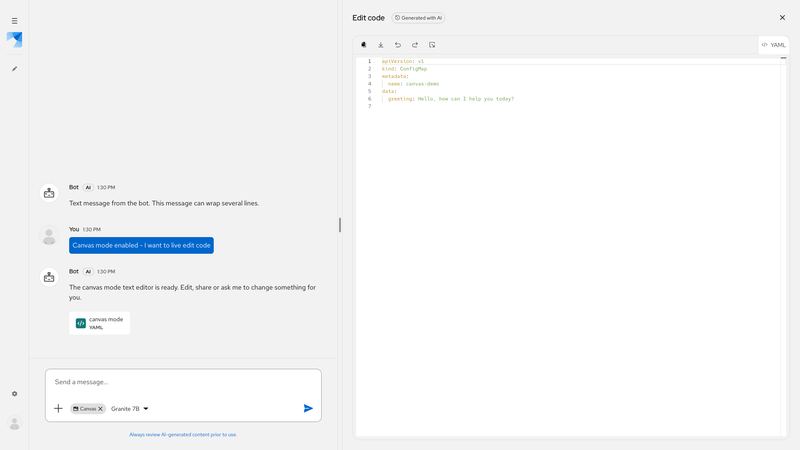
Canvas lets users work with generated or editable content alongside a conversation. Canvas content is fully flexible, allowing you to render any content suitable for your use case. It is recommended to only utilize canvas mode with a fullscreen Chatbot.
Composable structure
When utilizing a canvas layout, it's recommended to use a PatternFly drawer. You must apply the pf-chatbot__canvas* classes from @patternfly/chatbot so the drawer matches ChatBot backgrounds and fills the fullscreen layout.
The general recommended structure is as follows:
<Chatbot displayMode={ChatbotDisplayMode.fullscreen}>
  <div className="pf-chatbot__canvas">
    <Drawer className="pf-chatbot__canvas-drawer" isExpanded={...} isInline position="end">
      <DrawerContent panelContent={/* CodeEditor or other canvas content */}>
        <DrawerContentBody className="pf-chatbot__canvas-body">
          <div className="pf-chatbot__canvas-column">
            <ChatbotHeader .../>
            <ChatbotContent ... />
            <ChatbotFooter ... >
          </div>
        </DrawerContentBody>
      </DrawerContent>
    </Drawer>
  </div>
</Chatbot>
Class names
Class name | Purpose |
|---|---|
pf-chatbot__canvas | Container for the fullscreen canvas layout and its background. |
pf-chatbot__canvas-drawer | Styles the drawer that contains the canvas panel. |
pf-chatbot__canvas-section | Styles the section used within the drawer for focus. |
pf-chatbot__canvas-body | Ensures the drawer content body fills the available height. |
pf-chatbot__canvas-column | Arranges the canvas header, content, and footer vertically. |
pf-chatbot__canvas-panel | Styles the canvas drawer panel and removes the default panel spacing. |
pf-chatbot__canvas-panel-body | Provides the canvas panel content area and its spacing. |
pf-chatbot__canvas-head | Styles and positions the canvas panel header and close action. |
pf-chatbot__canvas-editor | Makes the code editor fill the available canvas space. |
pf-chatbot__canvas-docked-nav | Optional vertical navigation rail for a canvas layout. |
Demos
With code editor
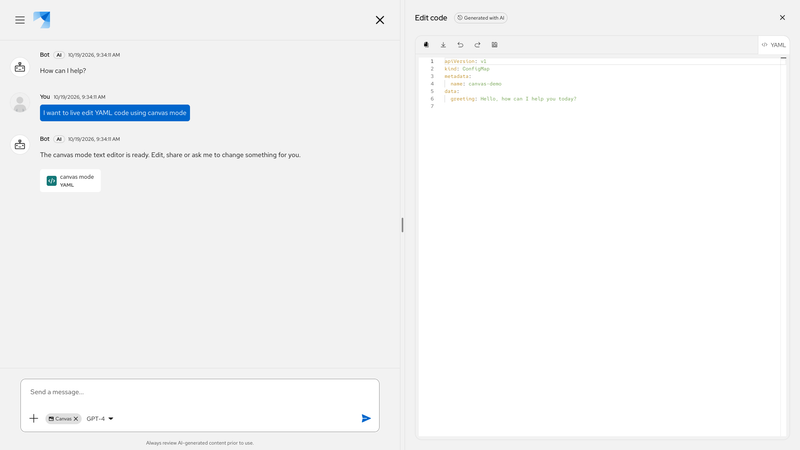
This demo shows canvas mode being used to render a PatternFly code editor. Canvas mode is launched by clicking a file chip below a message or the "Canvas" label below the message bar. You can also enable or disable canvas mode from the attach menu and dismiss the label to exit canvas mode.
With docked navigation
This demo shows canvas mode with an optional docked navigation rail. The rail can toggle chat history and start a new chat without closing the canvas.